Back in July I wrote a whole post going back and forth between a Synology NAS, an UGREEN NAS, and a Mac mini as a DIY storage server. I ended it undecided, with three full SSDs and a promise that the answer would get its own video.
This is that video. I went with the Mac mini.
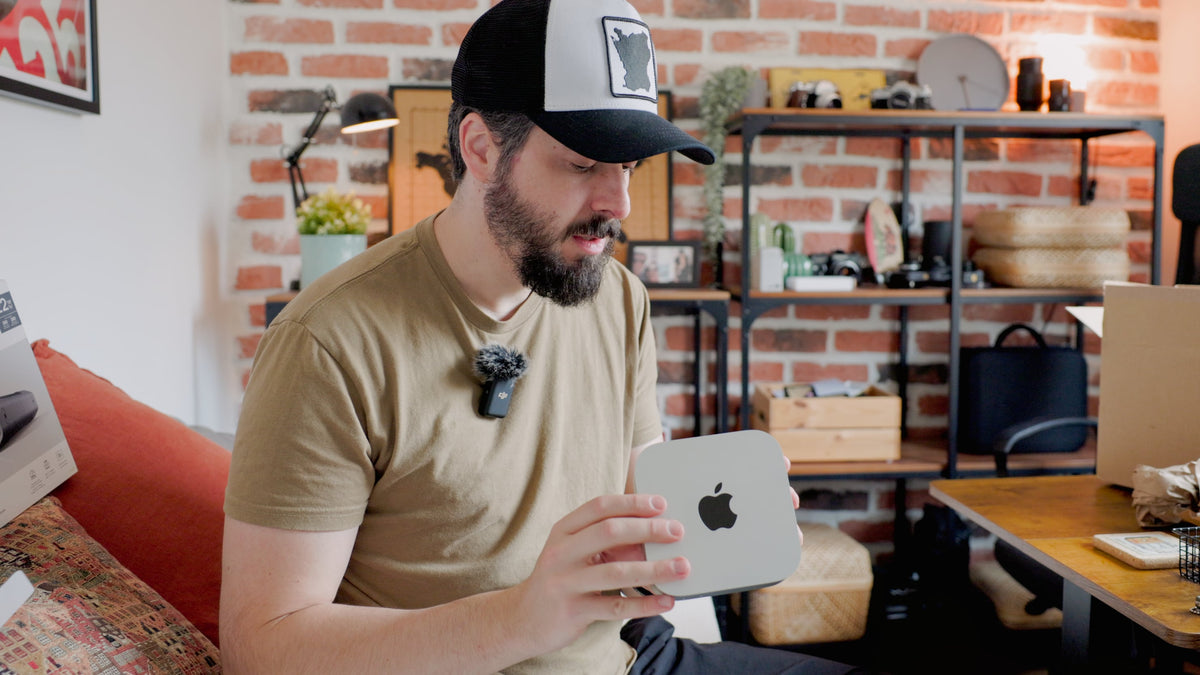
Specifically: the Mac mini M5 Pro (24GB of memory, 512GB internal SSD) paired with a SanDisk Professional G-DRIVE 22TB external hard drive. Bought with my own money, both of them. No sponsorship, no gifted units.
The video below is the unboxing and my reasons, roughly in the order they came into my head. This post is the part that comes after: what the hardware actually specs out to, how my July cost estimate compares with what I really spent, a couple of points from the video worth clarifying, and the part of this setup that honestly isn't finished yet.
If you missed part one, the video where I argued with myself about Synology vs. UGREEN vs. Mac mini is the one to watch first.
What I actually bought
Checked against Apple's spec page and SanDisk Professional's listings rather than going from memory.
| Mac mini M5 Pro | SanDisk Professional G-DRIVE 22TB | |
|---|---|---|
| Job in my setup | Main desktop, plus always-on file server | Long-term bulk storage |
| Core spec | 15-core CPU, 16-core GPU, 24GB unified memory, 512GB SSD | 7200rpm Ultrastar enterprise-class hard drive inside |
| Connections | Rear: 3x Thunderbolt 5 (up to 120Gb/s), HDMI. Front: 2x USB-C (10Gb/s) | 1x USB-C, USB 3.2 Gen 2 (10Gb/s) |
| Networking | 2.5Gb Ethernet standard, 10Gb Ethernet as a build-to-order option | None of its own: it's shared through the Mac |
| Real-world speed | Not the bottleneck here | Up to 280MB/s read and write |
| Noise | Apple lists 5 dBA at idle | It's a spinning 7200rpm drive, so you'll hear it seek |
| Approx. price (USD) | ~$1,699 at US retail | Swinging a lot right now: roughly $650 to $1,150 |
One thing changed since my July post: the M4 Pro Mac mini I priced back then came with gigabit Ethernet and charged $100 for 10Gb. The M5 Pro model ships with 2.5Gb Ethernet as standard. That matters more than it sounds, and the next section explains why.
Clarifying the "10 gigabit" point from the video
In the video I said the drive already has 10-gigabit USB-C, and I framed that as the answer to the whole 10GbE question from my NAS video. The spec itself is right: the G-DRIVE connects over USB 3.2 Gen 2 at 10Gb/s. But the port isn't what decides how fast this setup is.
The spinning disk inside tops out at around 280MB/s. That's roughly 2.2Gb/s. So the ceiling is the platter, not the cable, not the port, and not the Mac.
Two practical consequences if you're building something similar:
- It doesn't matter which Mac mini port you use for the drive. Rear Thunderbolt 5 or front USB-C, both have far more headroom than a single hard drive can fill. I'd still use a rear port, just to keep the front ones free for SD card readers and SSDs.
- The 10Gb Ethernet upgrade isn't worth paying for with one drive. The standard 2.5Gb port maxes out around 312MB/s, which is already above what this drive can deliver. When I eventually access these files from another computer, the network won't be what slows me down.
This is also the one area where a NAS genuinely beats what I bought. A 4-bay NAS can spread reads across several disks, so on a 10GbE connection it can outrun a single drive by a lot. If editing 4K straight off network storage was your main goal, that's a real point in the NAS column. For me it wasn't: as I said in the video, active projects still get edited off SSDs, which are several times faster than any spinning drive. The 22TB is where finished and archived work lives.
July estimate vs. what I actually spent
Here's the comparison table from July, with the setup I bought added as a fourth column. The July prices are the same figures from that post; drive prices have moved since, so treat everything as approximate.
| Synology DS925+ (3x 12TB, RAID 5) | UGREEN DXP4800 Pro (3x 12TB, RAID 5) | Mac mini M4 Pro + mirrored DAS (2x 24TB) | What I bought: Mac mini M5 Pro + 1x 22TB | |
|---|---|---|---|---|
| Usable storage | ~24TB | ~24TB | ~24TB | 22TB |
| Rough total | ~$1,470 | ~$1,570 | ~$3,000 to $3,750 | ~$2,350 to $2,850 |
| Survives one drive failing? | Yes | Yes | Yes | No |
| Also works as a computer? | No | No | Yes | Yes |
| Storage cost if you needed a new computer anyway | ~$1,470 | ~$1,570 | ~$1,600 to $2,350 (enclosure + drives) | ~$650 to $1,150 (just the drive) |
That last row is the one that actually decided it for me.
If you look at the totals alone, the NAS options win, and they win with redundancy included. But I needed a new desktop regardless. I used to work from an M1 Pro MacBook Pro, and the Mac mini is now my main editing machine. Once you count the computer as a computer instead of as storage, the storage part of my setup cost less than either NAS.
The flip side is right there in the "survives one drive failing" row. Which brings me to the honest part.
The weak spot: one drive is one drive
In July I wrote a whole section on why RAID is not a backup, and I priced the Mac mini path with two mirrored drives. What I actually bought is a single 22TB drive. No mirror, no parity, no redundancy at all.
That means if this drive dies, anything that only exists on it is gone. The G-DRIVE uses an enterprise-class drive and comes with a 3-year warranty, which improves the odds. But a warranty replaces hardware. It doesn't replace footage.
So the most important part of this setup is the part I still have to finish: a second copy. The realistic options:
| Option | What it protects against | What it doesn't | Notes |
|---|---|---|---|
| Cloud backup (Backblaze Personal) | Drive failure, fire, theft, anything at home | Slow restores of the full 22TB | $99/year, unlimited. The first upload of this much data takes a long time |
| Second external drive, mirrored or cloned | Drive failure, accidental overwrites (with Time Machine) | Fire, theft, power surge: same house, same risk | Fastest restore, but it doubles the drive cost |
| A NAS later, as the backup target | Drive failure, plus redundancy inside the NAS | Same-house risks, unless it lives somewhere else | What I mentioned at the end of the video |
The usual advice is three copies, on two kinds of media, with one offsite. My SSDs, this drive, and a cloud backup would get me most of the way there.
The Backblaze point, with the actual numbers
In the video I said that backing up a NAS to the cloud costs more because Backblaze treats it as a business setup. The conclusion is right. The reason is slightly different, and the gap is bigger than I made it sound.
Backblaze's Personal Backup plan covers one computer plus any external drives directly attached to it, with unlimited storage, for $99 a year. It doesn't cover network storage. If you want to back up a NAS with Backblaze, you use their B2 cloud storage instead, which is billed per terabyte at $6 per TB per month.
Here's what that means for 22TB:
| Mac mini + attached drive (Personal Backup) | NAS (B2 cloud storage) | |
|---|---|---|
| Pricing model | Flat, unlimited | $6 per TB per month |
| Cost per year at 22TB | $99 | ~$1,584 |
| Cost over 3 years | $297 | ~$4,752 |
Over three years, the cloud backup difference alone covers the price of the Mac mini.
One condition to know about: Backblaze stops backing up an external drive that hasn't been connected for 30 days. For a drive that's plugged into an always-on Mac mini, that's a non-issue. For someone who keeps their archive drive in a drawer and plugs it in twice a year, it's a real trap.
Other cloud providers price NAS backup differently, so if you're on the NAS side of this decision, it's worth shopping around. This is just the comparison I referenced in the video.
The Lightroom catch if you edit remotely
The plan from the video is to leave the Mac mini on at home and, once I have a laptop again, reach my files from anywhere. (The setup tutorial I'm following is linked in the video description.) For video files and general storage, that works. For Lightroom Classic, there's one rule worth knowing before you build your workflow around it.
Adobe doesn't allow a Lightroom Classic catalog to live on a network drive. Your photos can, but the catalog can't.
In practice:
- On the Mac mini itself: keep the catalog on the internal SSD and point it at originals on the 22TB drive. The drive is directly attached, so this works exactly like any external drive.
- From a laptop over the network: the catalog has to live on the laptop, or on an SSD plugged into it, with originals pulled from the Mac mini. Smart Previews help a lot here, since they let you edit without the full raw files.
- Watch the 512GB internal drive. Catalog previews grow quietly. If your catalog is large, set Lightroom to discard 1:1 previews after a while.
The part I'm most looking forward to: every old shoot now lives in one place instead of scattered across three full SSDs. That makes the back catalog re-editable again, which is exactly where a film-look pass can give old work a second life. It's the kind of job I built my 80s & 90s Cinematic Lightroom Presets for. And since Lightroom keeps presets in its own settings rather than next to your photos, moving your library to a new drive doesn't affect them.
How long 22TB actually lasts
A useful reference point: on one day of intermittent shooting with the DJI Osmo Nano, I came home with over 70GB of 4K footage. That's from a 52-gram action camera, before adding a single file from the Canon R6 Mark II.
At that rate, 22TB is roughly 300 shooting days like that one. Add raw photos from client work and photo walks like the ones in my Helsingborg photo locations guide, plus family footage, and it shrinks. But it's a different universe from six terabytes of portable SSDs that were full before I started.
Where I've landed
I'm happy with the choice. The Mac mini is quiet, it's my main computer, and it gives me a file server without committing to Synology's or UGREEN's software. For my situation, where I needed a new desktop anyway, it was the better use of the money.
But it isn't finished. Right now it's one drive with no second copy, and that's the exact thing my July post warned against. Setting up the backup and the remote access comes next, and I'll do a follow-up video once everything is actually running. Subscribe if you want to see whether the plan survives contact with reality.
If you're running a Mac mini as a home server: what are you using for remote access, and where does your second copy live? Drop it in the comments. I'd genuinely like to know before I set mine up.
Share:
Two Years With PolarPro's Magnetic VND/PL: The Chroma Helix, Reviewed (And How It Compares to NiSi)
Is the iPhone 18 Pro Camera Good Enough to Replace a Full-Frame Camera?